Step 1
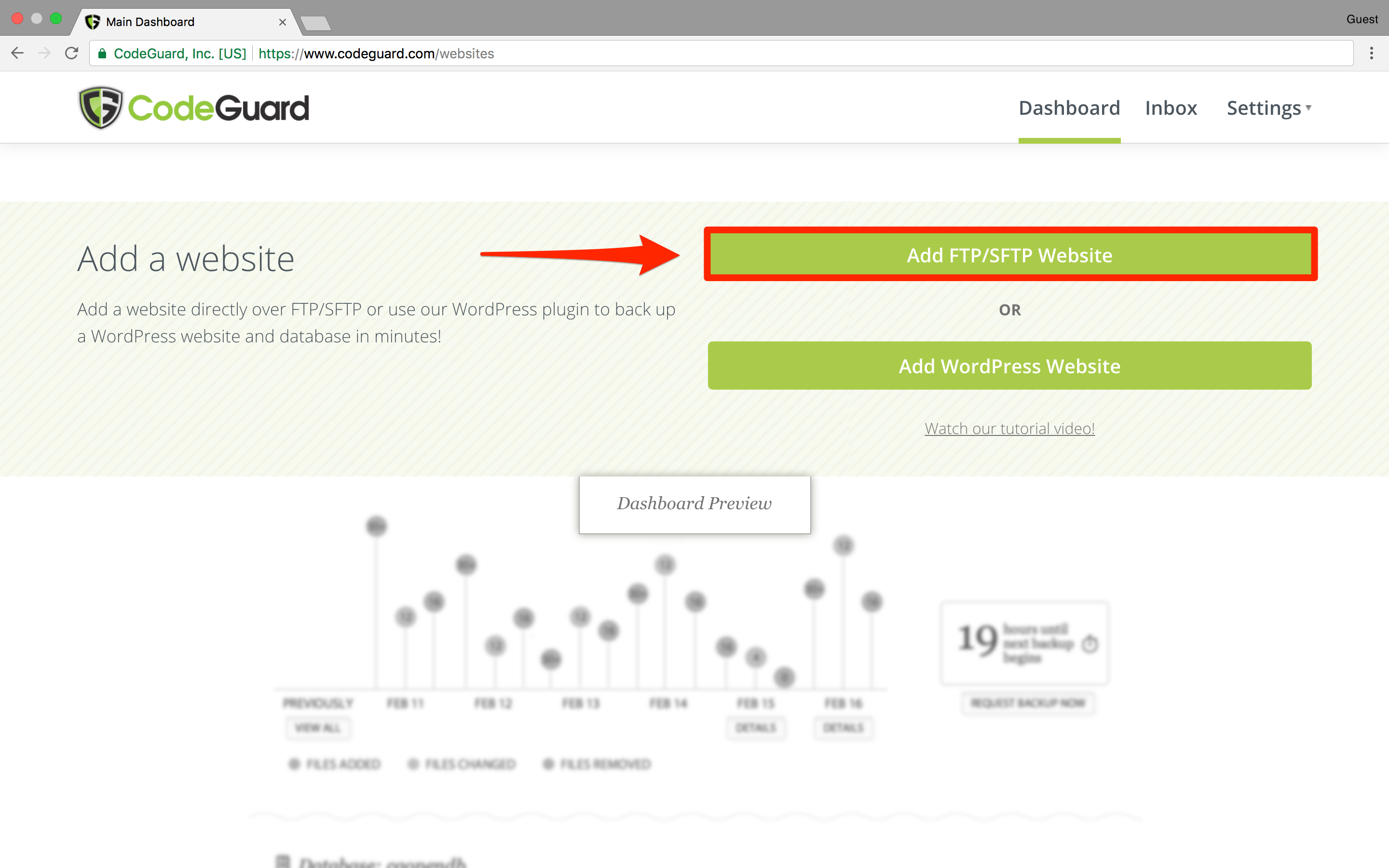
To start backing up your website with CodeGuard simply log into your CodeGuard dashboard and click on "Add FTP/SFTP Website".
Step 2
Using the details below, fill out all the fields to add your website.
Website URL: Enter your website address
SFTP or FTP: Select SFTP
SFTP Server: Enter the IP address or server address of the server.
Username: Enter your cPanel username
Password: Enter your cPanel Password
Next click on "using a different port?" and enter port: 722 which is the ports number we use for SFTP and SSH connections.
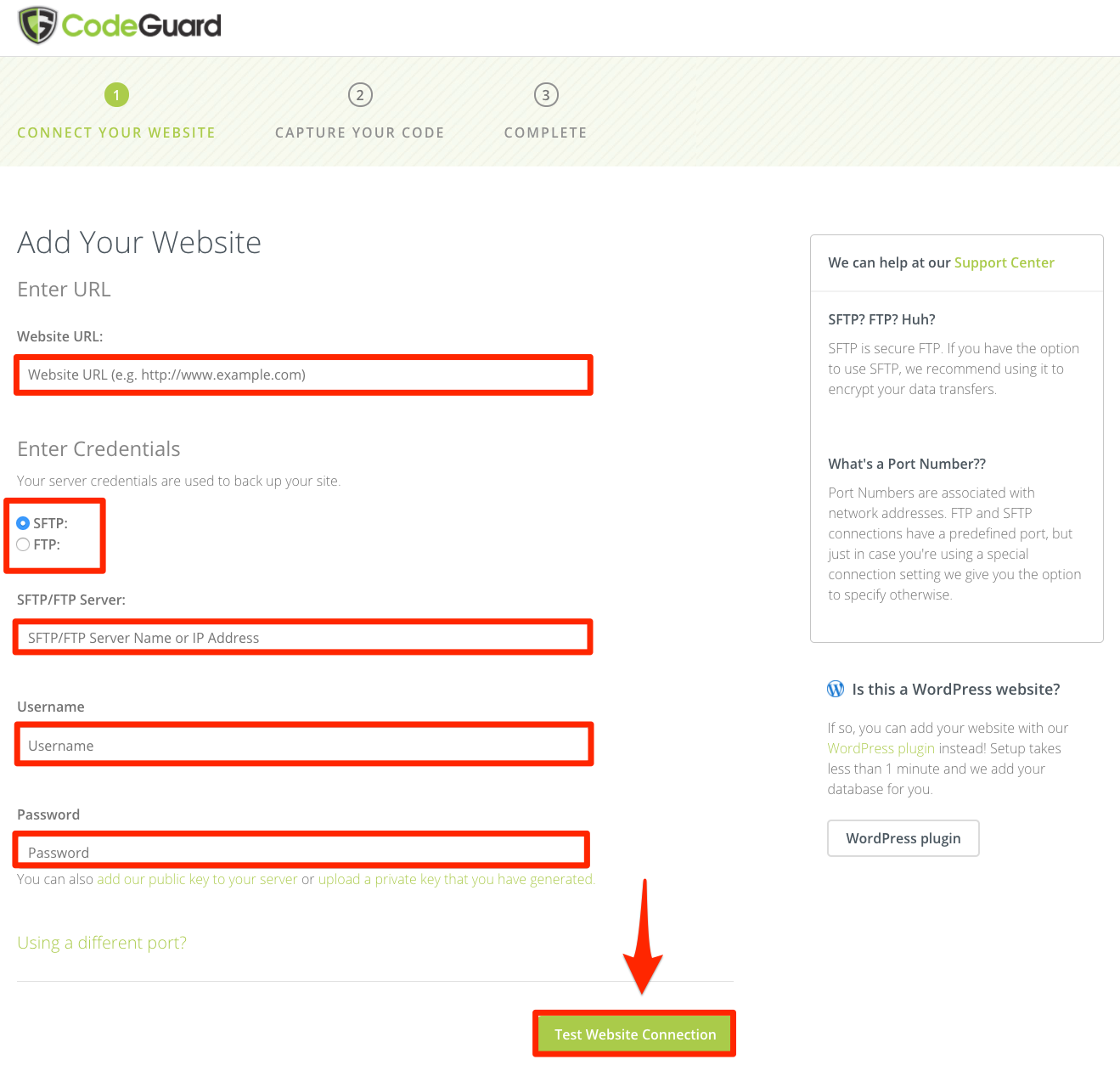
If you'd like to add your website using a private key, click "upload a private key that you have generated" instead of entering a password. If you'd like to use our public key, click "add our public key to your server", and a public key will be generated.
Once you've entered your credentials, click "Test Website Connection". If the credentials you entered are correct you will be brought to the next step.
Step 3
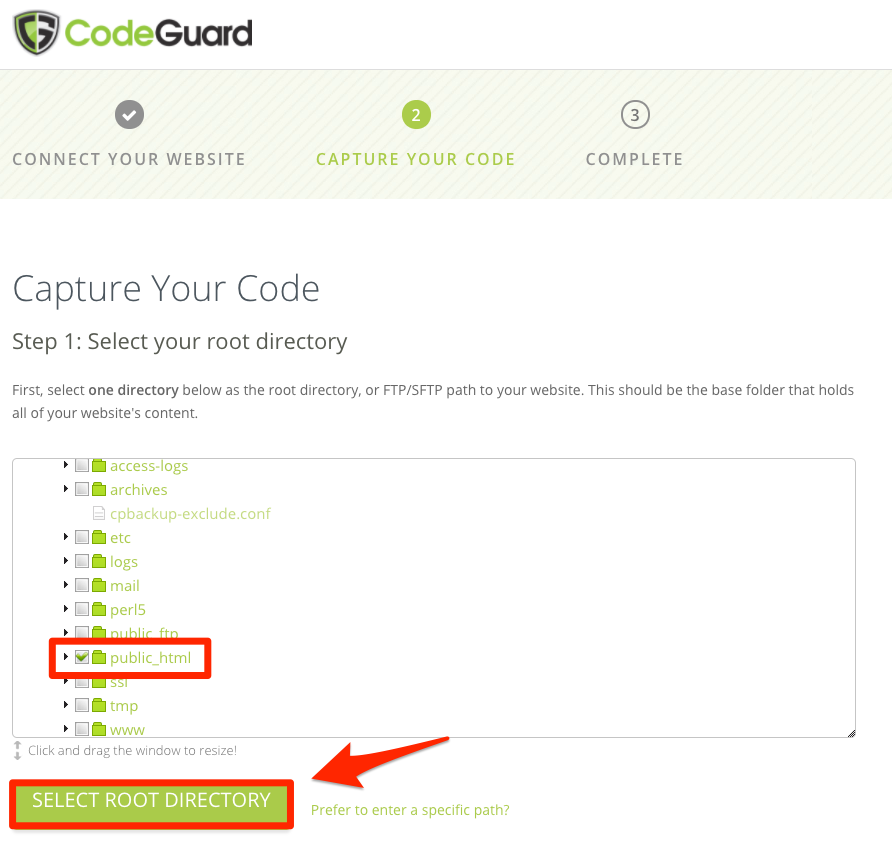
Click the checkbox next to the directory you would like to be your root directory. We recommend you choose the directory that contains all files you would like backed up. Keep in mind that any new files/folders added to your root directory in the future will be added to your backups. Once you've selected it, click "Select Root Directory."
Step 4
Scroll down to the next section and select the content that you would like backed up. To select everything inside your root directory, simply click the checkbox next to your root directory. Selecting any folder will automatically include its entire contents. Then click "Begin First Backup."
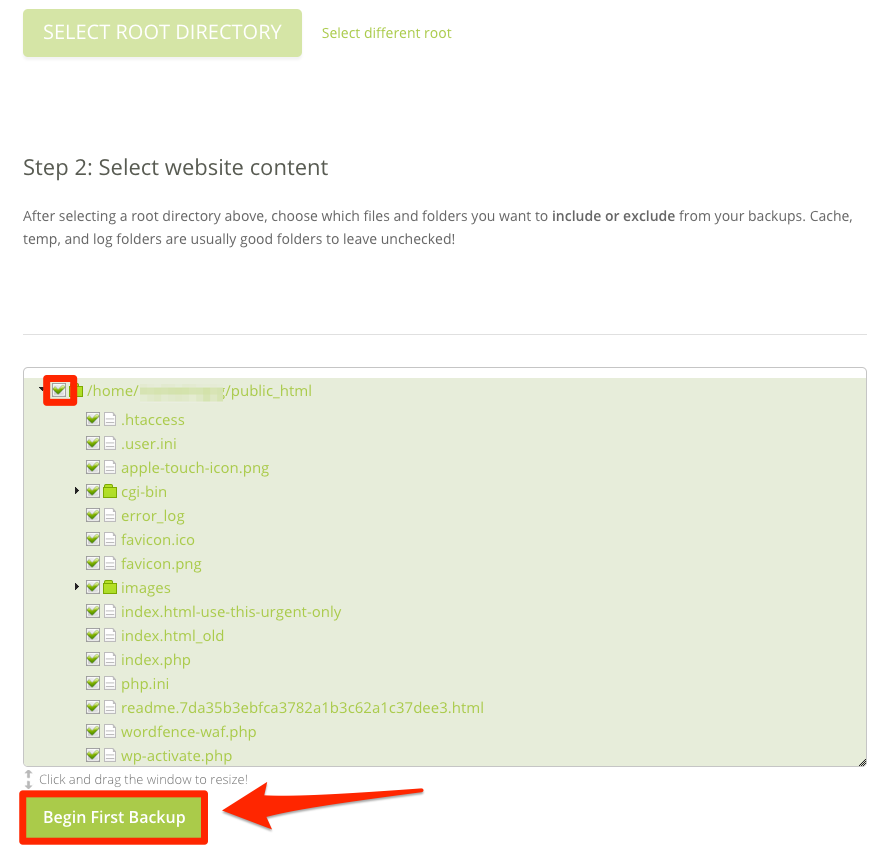
Your website backup has now begun! You will next be prompted to add a database. If you have a database associated with your website it is very important to back up your database as well.
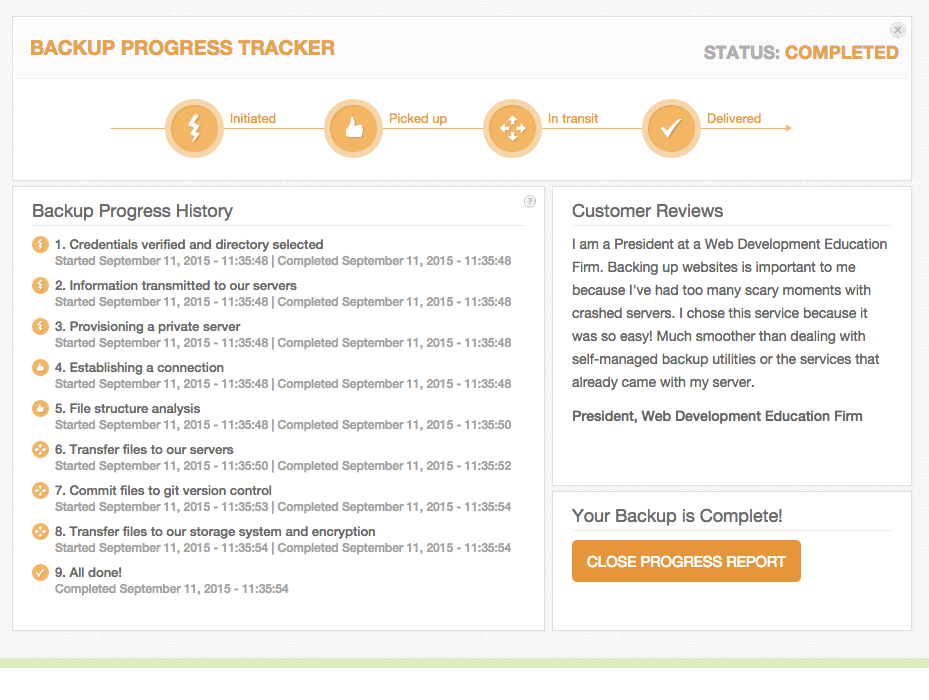
Back on your dashboard, you will see a progress tracker that will indicate the status of your initial backup. When the backup is complete, it will look like this: